Using the console
Celbridge comes with a Console panel offering a CLI (Command Line Interface). The prompt in this terminal comprises 3 greater-than signs >>>.
The IPython REPL
The console panel is rendered using Xterm.js hosted in a WebView2. The Xterm.js terminal is connected to a terminal emulator session via ConPTY which is hosting a Python process. The REPL environment is implemented using IPython (the same tech used in Jupyter Notebooks). The IPython REPL is a full replacement for the built-in Python REPL that adds a lot of useful functionality. We support all the standard IPython magic commands, such as %run, !, %ls, etc.
The terminal is where you'll see messages from Celbridge, such as the status of loading new extensions or a different version of Python if you change the project settings and re-load the project.
(I)Python REPL
This terminal offers a full Python REPL, with which you can interact. Some examples of using the Python REPL terminal include:
- Run a Python script file named
hello.py, one that contains a Pythonprint()statement to ouput the string Hello world from Python:
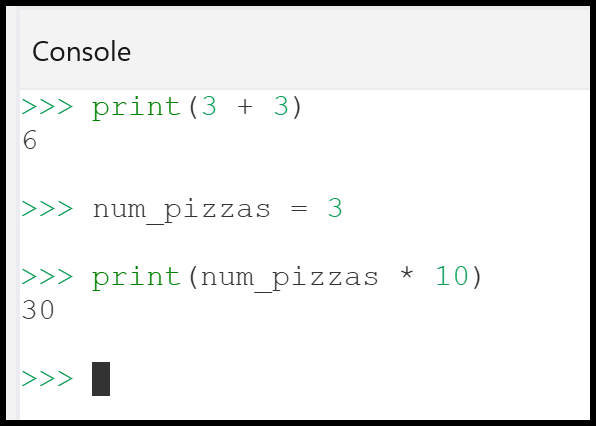
- some basic Python commands, including setting and then using variables:
CLI commands
CLI bang ! commands
It also offers a range of commands for running CLI programs, available using the bang "!" (exclamation mark) character. Examples including:
- Directory list (in this example I'm working from an X: drive in a Celbridge project named celbridge_sample):
- Running
makecommands. For example, if you're building code solution or websites using the MAKE tool. In this example I'm running themake htmlcommand to generate HTML files from RST files in a Sphinx project (only the first few lines of output are shown ...):
Note
TIP Use \
IPython built-in "magic" % commands
IPython offers a range of commands for running CLI programs, available using the percent "%" character. Automagic mode is switched on by default, so in almost all cases you can omit the percent "%" character, since IPython will saerch its list of magic commands to match against what you have typed.
Examples including:
- Print Working Direcotry (
%pwdorpwd):
- Change Direcotry (
%cdorcd):
- History of terminal commands (
%historyorhistory)
The IPython documentation pages provide a full list of the magic commands
IPython .ipy files
If there are several commands you often type in the same sequence, or have commands with many arguments, you can type those commands into a text file with the .ipy extension, and then run the sequence of commands in that file at the terminal with:
For example, when working with Sphinx I often wish to run !make clean immediately before running !make html. So I could create a file make.ipy containing these commands:
And then I can run them by entering run make.ipy in the console.
Learn more about REPLs and this console at: