Getting started with Celbridge
Welcome to Celbridge. This part of the docs will help you get to know your way around the application.
Note
This document assumes you've already successfully installed Celbridge. For detailed installation instructions, see the Windows or macOS installation page.
The Basics
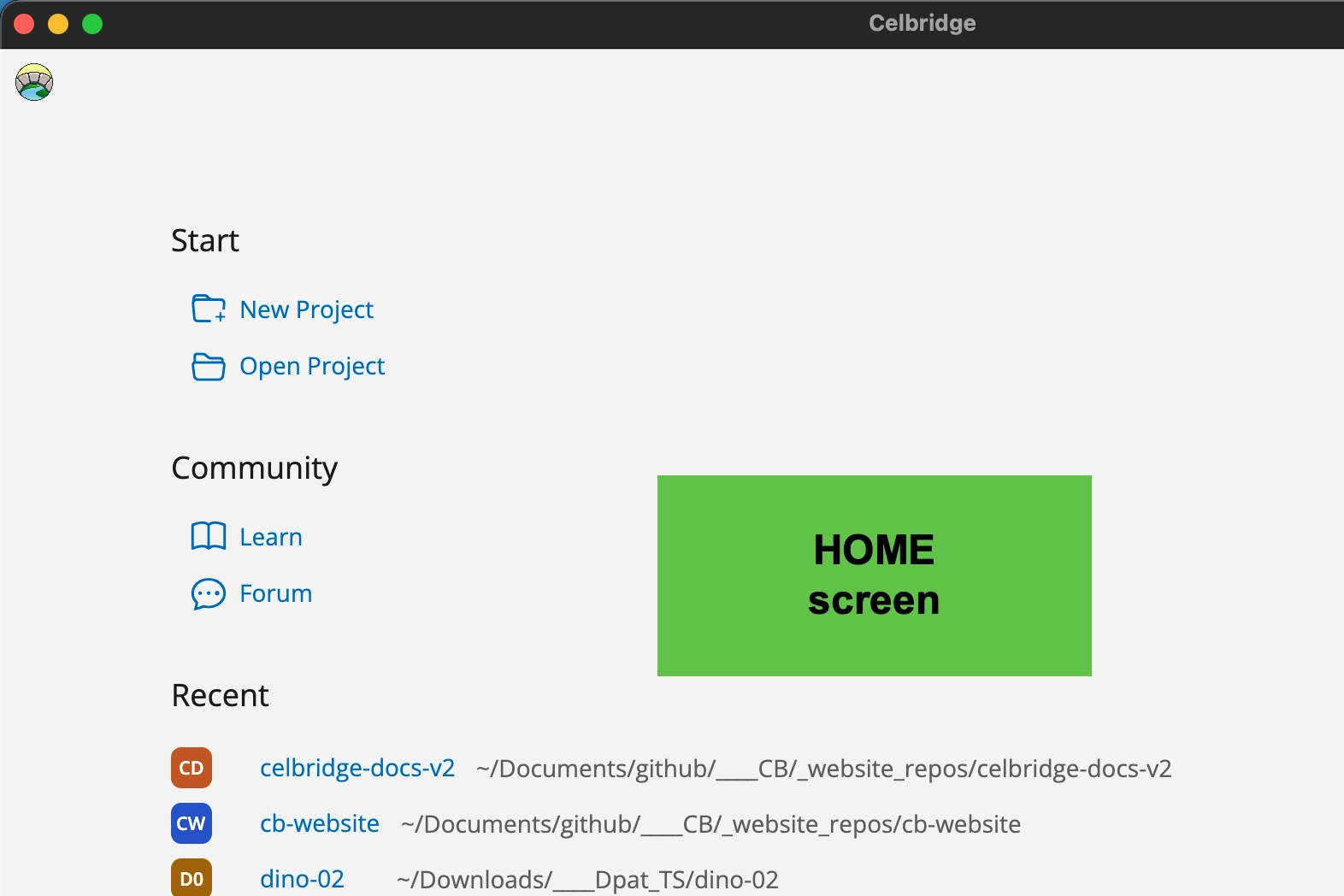
Celbridge has two main interfaces: - the home screen, where you create and open projects, - you'll only see this page if no project is currently open in Celbridge
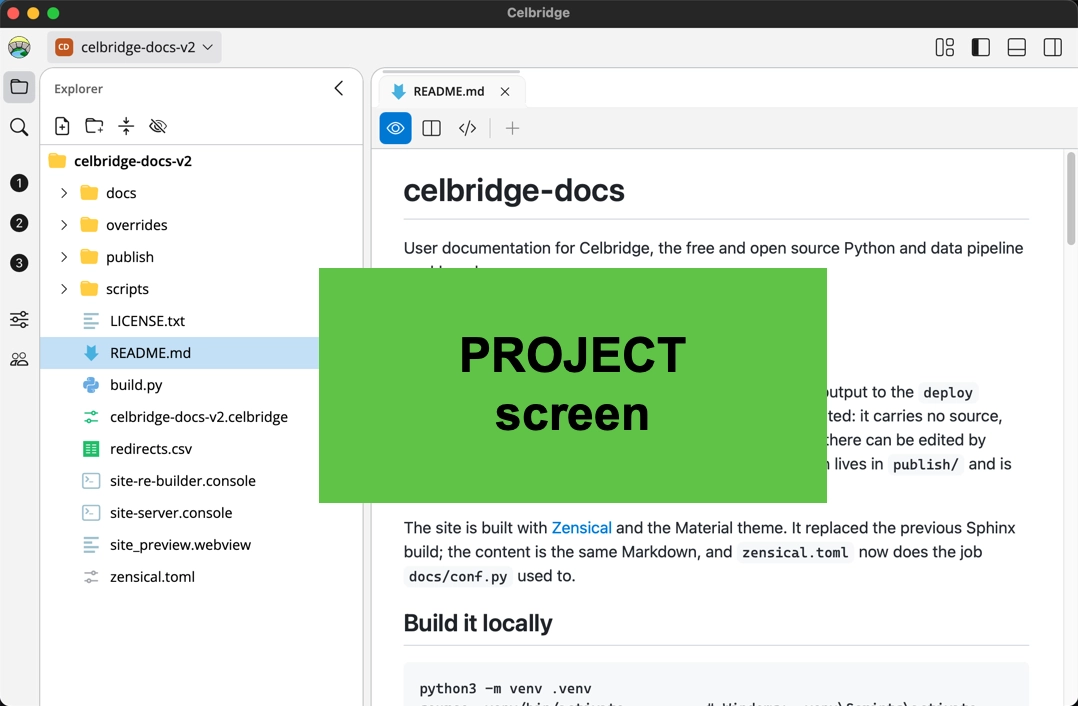
- The Project screen, where you work directly in a project
- you'll spend almost all your time working on an open project in this screen
Creating a Project
You can create and open Celbridge projects from either the home menu, or the hamburger menu at the top of the navigation bar to the left of the main interface.
Let's create a project from the home menu.
- Open the File menu.
- Click
New project. -
Name your project.
-
Choose a folder to place your project in, and select whether you want Celbridge to create a subfolder with the same name as the project.
- creating a folder for a new project is the default option that will be selected.
-
Finally, clikc the Create button.
The steps to create a project from the hamburger menu are identical:
- just click the menu and select
New project.
The Celbridge Editor
Let's explore the Celbridge editor.
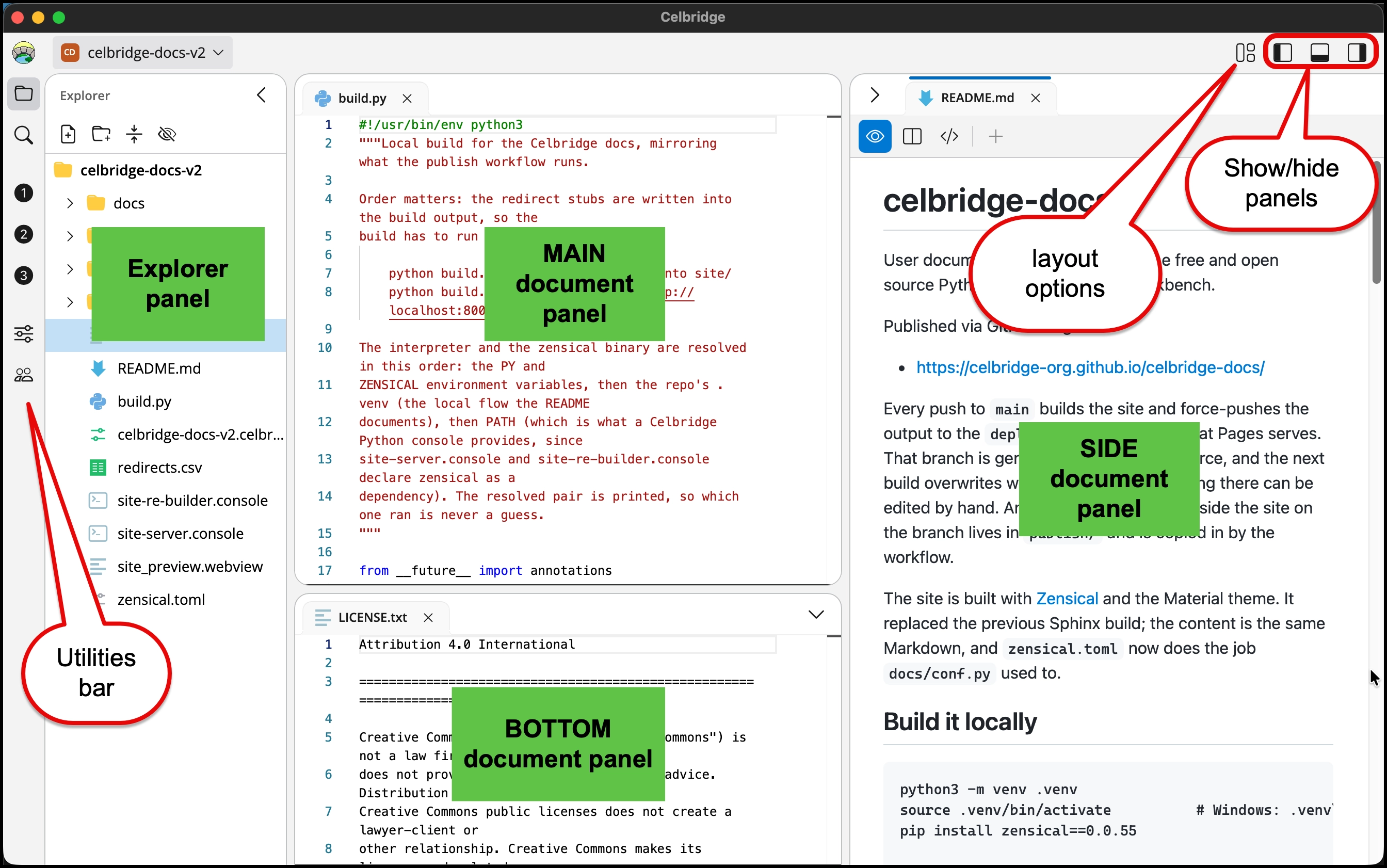
When you are working with an open project, fFrom left to right, top to bottom, the sections of the Celbridge editor are as follows:
Utilities Bar
-
The Explorer list the project resources (files and folders)
-
The Search utility allows you to search for text within project files
-
The Custom shortcuts and utilities If any custom utility packages or document shortcuts are declared in the project, icons for them will appear below the magnifiying glass icon of the Search utility
- in this sample Celbridge project screenshot, there are no custom utilities, but there are 3 custom document shortcuts, with icons "1", "2" and "3"
-
The Project Settings lets you change project settings.
-
The Community icon will open a web view document, whose home page is the Celbridge project home page, and also with bookmarks for the project's docuemntation (Learn) and community Forum
Explorer Panel
-
The explorer panel lists all files in the project. Add existing files by dragging and dropping them from the Windows File Explorer.
-
Open a file by right-clicking it and selecting
Open. -
Perform various options on files using the
Editoption. -
Add a new file or folder by right-clicking anywhere in the Explorer panel and selecting an option from the
Adddropdown. The supported options are a folder, Python script, Excel file, Markdown file, web application file, or plain text file of any format. -
Open a file in the Windows File Explorer | macOS Finder using the
Open inoption. -
If you have an open Python console document, then you can also run Python files using the
Runcontent menu option. Right-click on a Python file in the Explorer panel and selectRun. The open Python console document prints any output from the script.
Document Panels (Main, Bottom, Side)
-
View and edit open documents in the document panels. Double-click on a file in the explorer panel to open it in the documents panel.
-
You can tab between multiple open documents.
-
Celbridge includes a fully-featured text editor based on Monaco, the editor used in Visual Studio Code.
-
The text editor supports all popular text formats and programming languages.
-
The documents panel also provides a live preview for Markdown.
Note
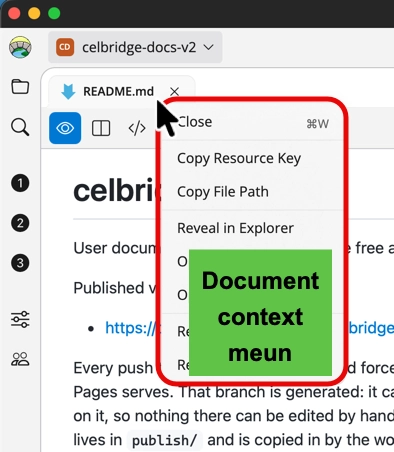
Right-mouse clicking over a document tab will show the document's context menu: