Hello World (Python programming)
This use case example shows you how to create and run a simple Python script.
Create a new, empty Python file
- Create a new Celbridge project (or use an existing one).
-
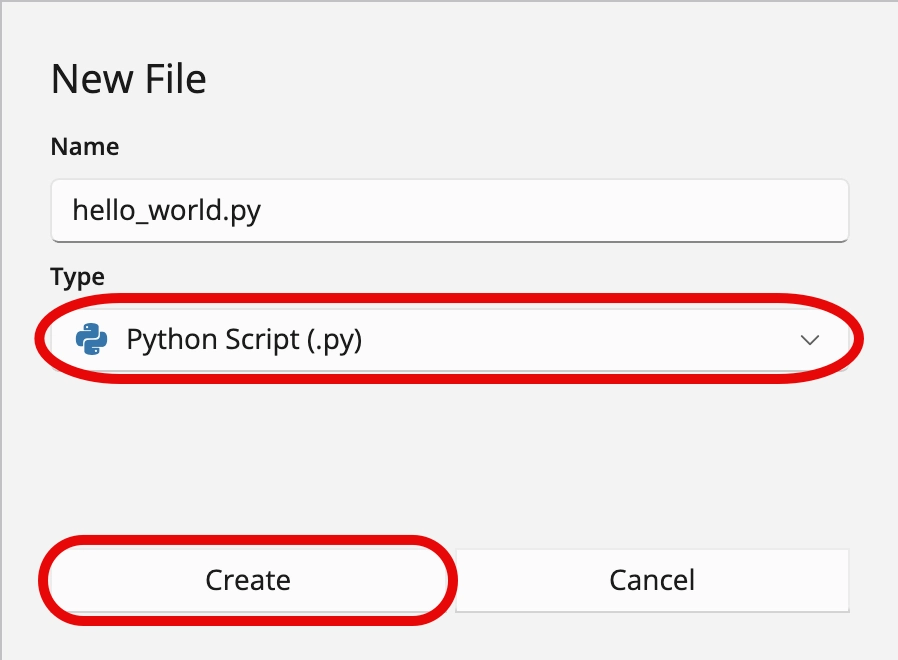
Right-mouse click in the file explorer and choose to add a new Python file named hello_world.py:
-
choose menu: File | New File
- enter the file name as hello_world.py
- choose type: Python Script (.py)
Edit the Python file
- The new Python script file should be created and appear in the file explorer panel.
-
Edit your new script, by double clicking on file hello_world.py in the file explorer panel:
- the file should open in the code editor in the Documents panel
-
Type the following simple Python print statement:
Note
There is no need to click anything to save your edits - since Celbridge automatically saves your changes as you type
Create/Open a Python console document
If you started this project as a Python project, you'll already have a python.console Python console document in your project.
If you don't have a Python console document:
-
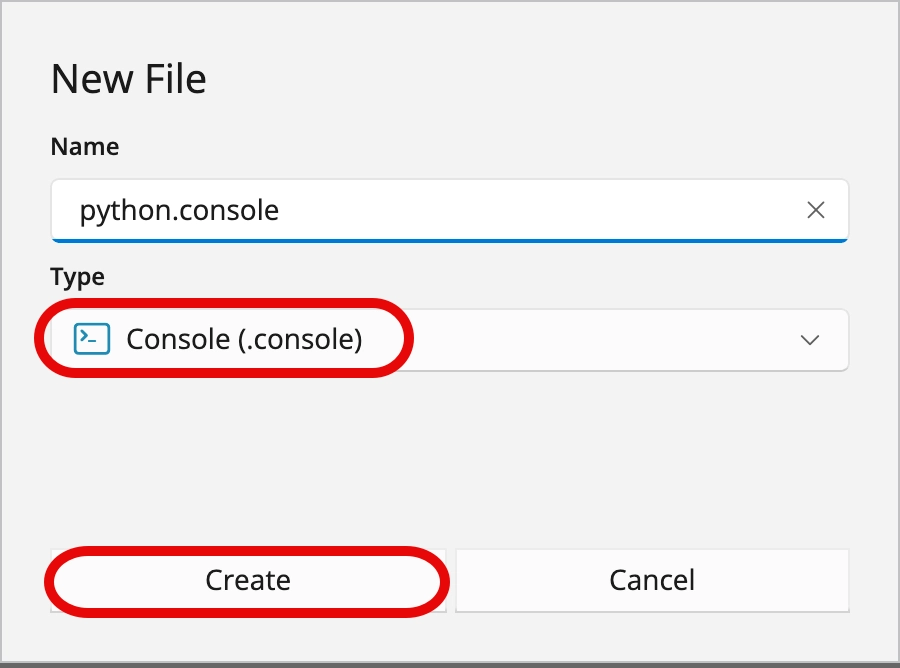
Create a new Console document named
python.console- choose menu: File | New File
- enter the file name as
python.console - choose type: Console (.console)
-
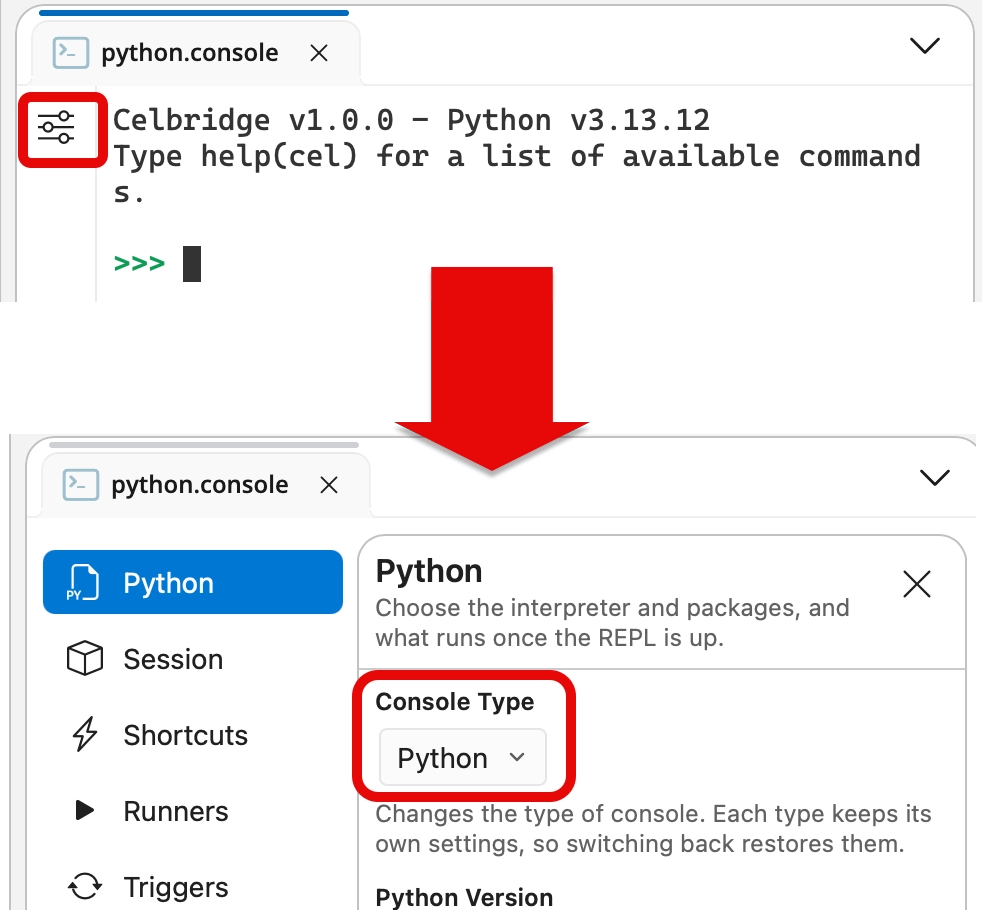
Open the Console document & ensure its Console Type is Python
- open the console settings
- select Python from the Console Type dropdown menu
Run the Python file
-
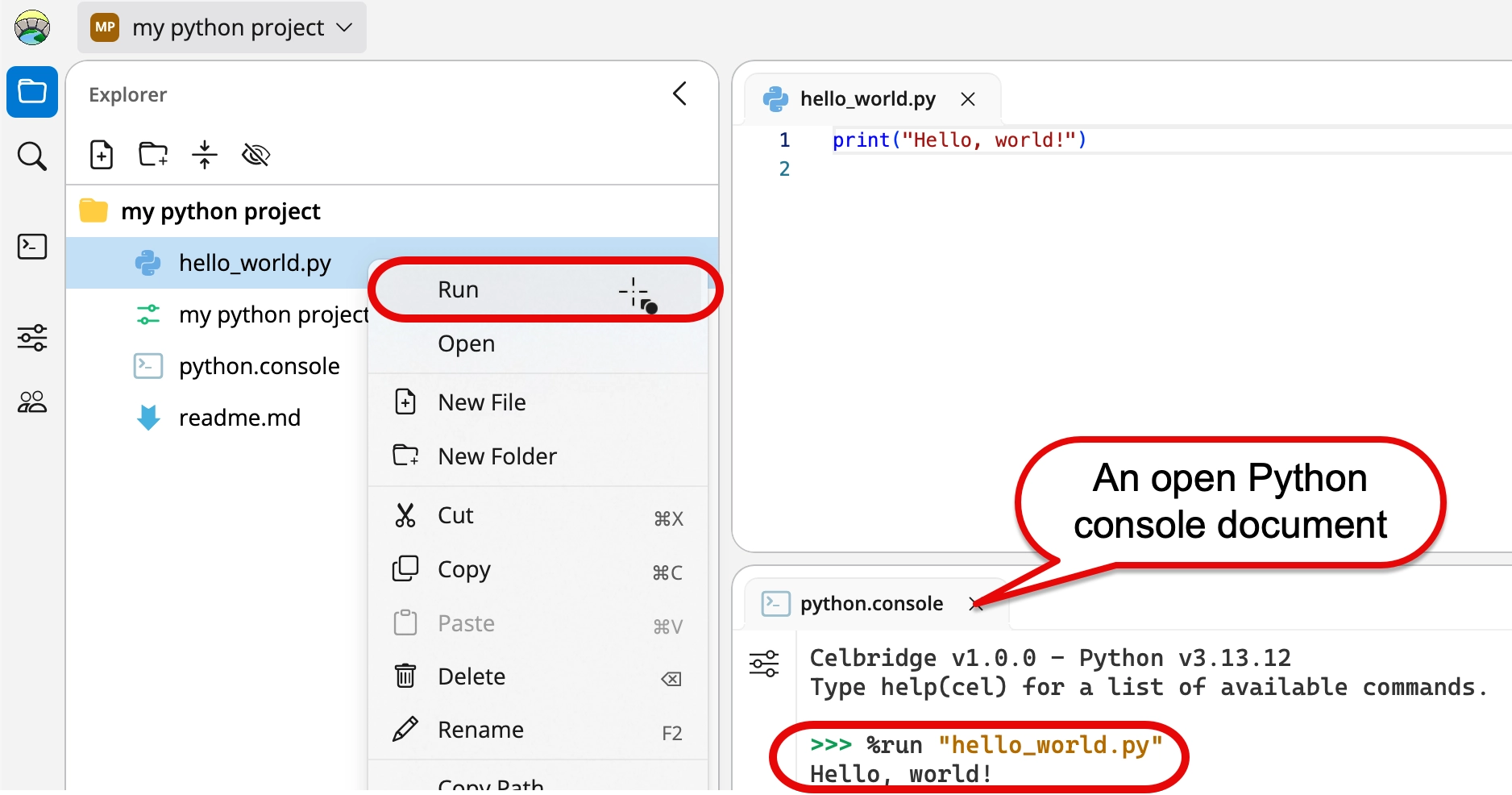
Run your Python script.
- A simple way to do this is by right-mouse clicking in the file explorer over file hello_world.py, and choose the Run option.
-
In the Python console document you should see the CLI comment %run "hello_world.py" followed by the text "Hello, World!" printed out on the next line.
Congratulations - you've created and executed a Python script using Celbridge!