Python Versions and Packages
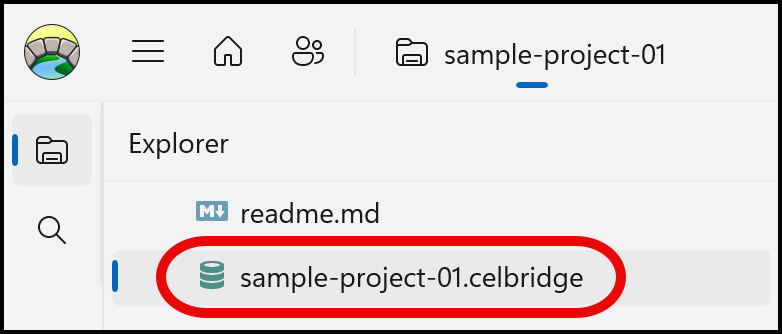
The project settings file configures the project for a specific version of Python. This file is named yourprojectname.celbridge, and is visible in the explorer panel.
For example, this screenshot shows the project settings file for a project named sample-project-01:
Python version
The project section of the project settings file uses key requires-python to declare the Python version for the project. For example, this declares Python version 3.12 for a project:
[celbridge]
celbridge-version = "0.2.0"

[project]
requires-python = "3.12"
If your project requires a specific version of Python, then it’s this project setting you need to ensure specifies that version.
Note
Every project must have a [project] section, with a requires-python key that declares the required Python language version.
It must also have a [celbridge] section, with a celbridge-version key that declares the version of Celbridge the project was created with.
When you create a new Celbridge project an up-to-date version of Python will automatically be declared in the project settings file created with the project.
Python Packages
Additionally, you can specific Python (PyPi) packages to be automatically loaded through the project settings file.
For example, let’s add the data analysis library Pandas to our Celbridge project.
- Open the
.celbridgeproject settings file: double-click it in the explorer panel.
- Open the
- Add
"pandas"to thedependencieskey in the[project]section. (create a dependencies key if one isn’t already present)
ensure you wrap double-quotes around the package name.
- Add
[celbridge]
celbridge-version = "0.2.0"

[project]
requires-python = "3.12"
dependencies = ["pandas"]
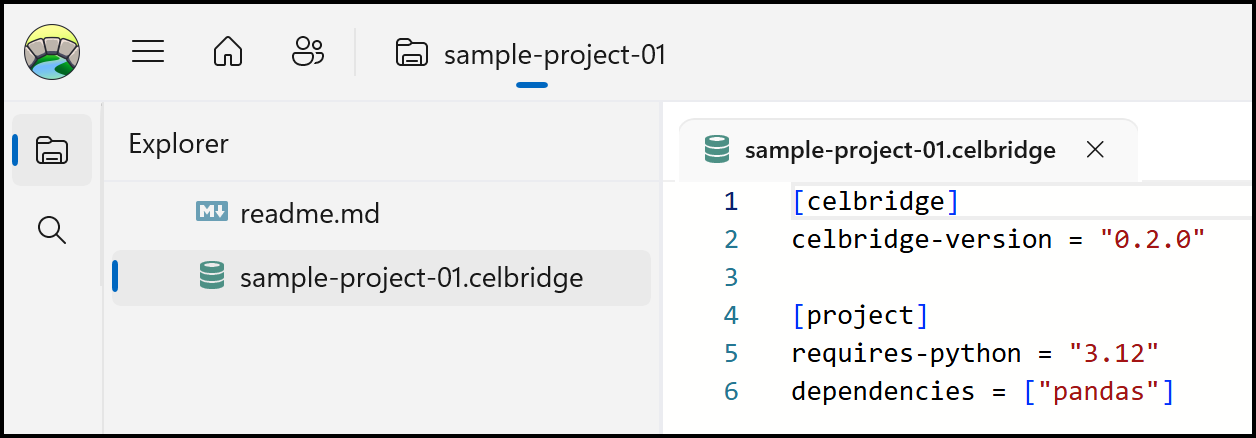
After a second or two Celbridge will detect you have changed the project settings file, and in the Console you’ll be offered a button to
Reload project

The console window will show Pandas being installed, after the Python virtual environemnt has been set up (give it a few seconds!).
You can specify multiple packages by declaring a comma-separate list of them in the dependencies key. For example, here we specify both the "pandas" and "numpy" packages:
[celbridge]
celbridge-version = "0.2.0"

[project]
requires-python = "3.12"
dependencies = ["pandas", "numpy"]
For a list of Python packages visit Pypi