Setting up Sphinx with Celbridge
The documentation for Celbridge is generated from .rst (ReStructured Text rst_guide ) files using sphinx_guide .
The steps below show how to setup a Sphinx project in Celbridge.
Create a new Celbridge project
ensure you wrap double-quotes around the package name.
Open the
.celbridgeproject settings file, and for the project section, add to the dependencies the list of these 2 packages:sphinxandsphinx_rtd_theme:[project] requires-python = "3.12" dependencies = ["sphinx", "sphinx_rtd_theme"]
After a second or two Celbridge will detect you have changed the project settings file, and in the Console you’ll be offered a button to
Reload project.Click this button to reload the project with the new settings.
The console window will show Sphyinx being installed.
- Run the quickstart, by typing
!sphinx-quickstartin the Console: - you’ll need to enter some details such as:
- separate source and build directories
I always say yes to this
- project name
e.g. sphinx demo
- author name
e.g. Matt Smith
- project release
you can jut hit return,
or give a version number like 1.0
- project language
default is English, so you can hit return,
or enter 2-character language code)
you’ll then see some files and folders created for your project
- Run the quickstart, by typing
Here’s the output I got when runnning this quickstart: … code:
>>> !sphinx-quickstart
Welcome to the Sphinx 8.2.3 quickstart utility.

Please enter values for the following settings (just press Enter to
accept a default value, if one is given in brackets).

Selected root path: .

You have two options for placing the build directory for Sphinx output.
Either, you use a directory "_build" within the root path, or you separate
"source" and "build" directories within the root path.
> Separate source and build directories (y/n) [n]: y

The project name will occur in several places in the built documentation.
> Project name: sphinx demo
> Author name(s): Matt Smith
> Project release []:

If the documents are to be written in a language other than English,
you can select a language here by its language code. Sphinx will then
translate text that it generates into that language.

For a list of supported codes, see
https://www.sphinx-doc.org/en/master/usage/configuration.html#confval-language.
> Project language [en]:

Creating file X:\Downloads\celbirdge-files\sphinx-demo2\source\conf.py.
Creating file X:\Downloads\celbirdge-files\sphinx-demo2\source\index.rst.
Creating file X:\Downloads\celbirdge-files\sphinx-demo2\Makefile.
Creating file X:\Downloads\celbirdge-files\sphinx-demo2\make.bat.

Finished: An initial directory structure has been created.

You should now populate your master file X:\Downloads\celbirdge-files\sphinx-demo2\source\index.rst and create other documentation
source files. Use the Makefile to build the docs, like so:
make builder
where "builder" is one of the supported builders, e.g. html, latex or linkcheck.
Note the new files and directories created:
|____/build
|____/source
| |____/static
| |____/templates
| |____index.rst
| |____conf.py
|____make.bat
|____Makefile
buildis empty - this is where your generated HTML pages go/source/index.rst- this is your index page and also navigation page listyou’ll add new pages to be linked in this file
- Add a new
.rstfile saying hello world: in
/sourcecreate new filehello.rstcontaining the following:
Hello world
===========

I am some RST text in a new file
- Add a new
- Add a reference to this file in
/source/index.rst: Add
hello, indexed with 3 spaces, after a new blank line, at the end of this file:
.. toctree::
:maxdepth: 2
:caption: Contents:

   hello
- Add a reference to this file in
The Sphinx Read-The-Docs theme is great. To configure Sphinx to use this theme edit the last few lines of
/source/conf.pyfile, by addingt the “sphinx_rtd_theme” into the list of extensions, and specifying that variablehtml_themehas the value “sphinx_rtd_theme”:extensions = [ "sphinx_rtd_theme", ] templates_path = ['_templates'] exclude_patterns = [] # -- Options for HTML output ------------------------------------------------- # https://www.sphinx-doc.org/en/master/usage/configuration.html#options-for-html-output #html_theme = 'alabaster' html_theme = "sphinx_rtd_theme"
Run the Sphinx website builder, by typing
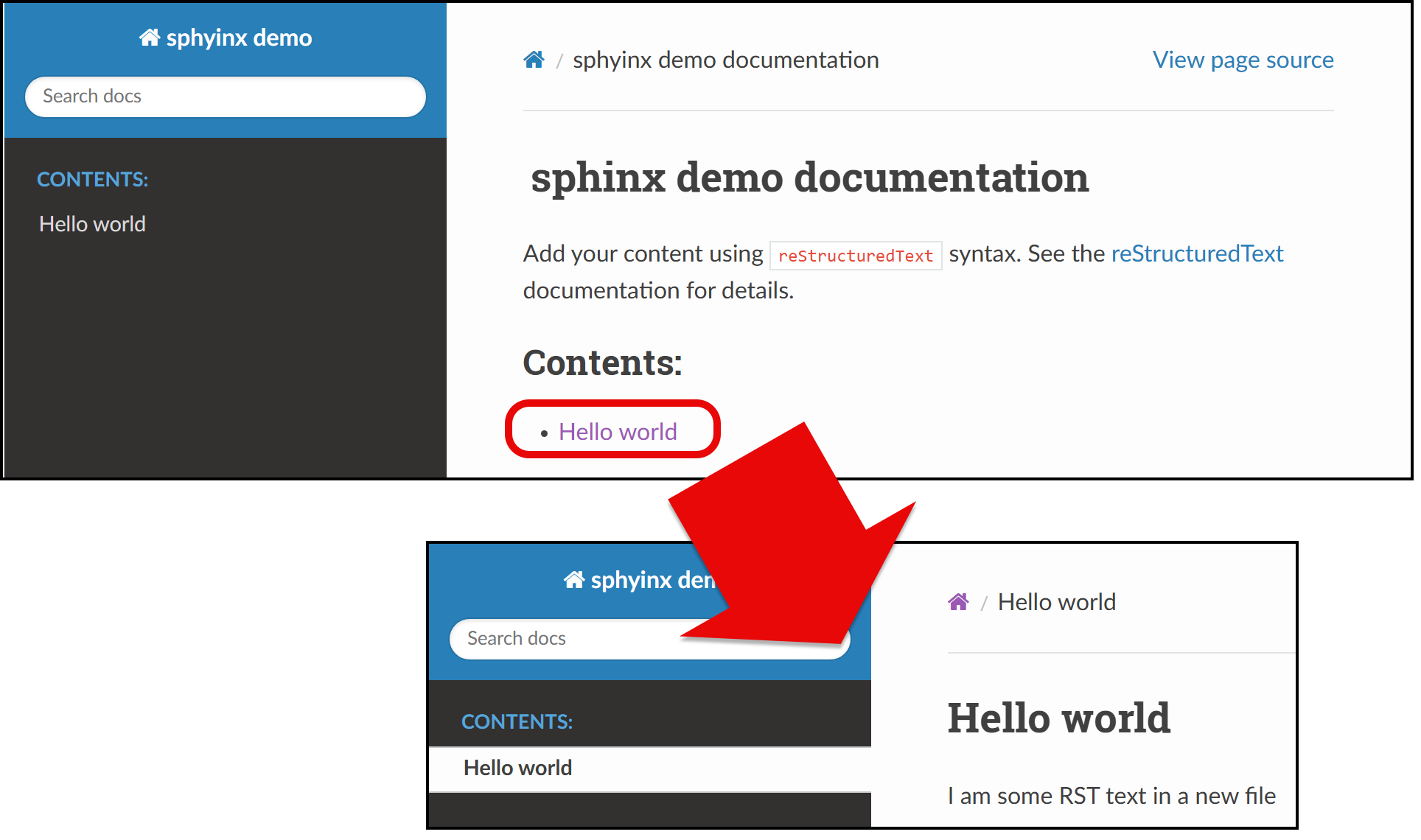
!make htmlin the Console:Once you server the HTML files one the home page should see a link Hello world, linking to your simple Hello World generated HTML page:
Note
If links, not just page content, have changed, you should do a clean before the build, to clear out older files.
To clean then build run these 2 commands in the Console:
>>> !make clean
>>> !make html
Acknowledgements
This sphinx_guide was useful in creating this documentation page.