Hello World (Python programming)
This use case example shows you how to create and run a simple Python script.
Create a new Celbridge project (or use an existing one).
Right-mouse click in the file explorer and choose to add a new Python file named hello.py :
choose menu: Add | Python Script (.py)
enter the file name as hello.py
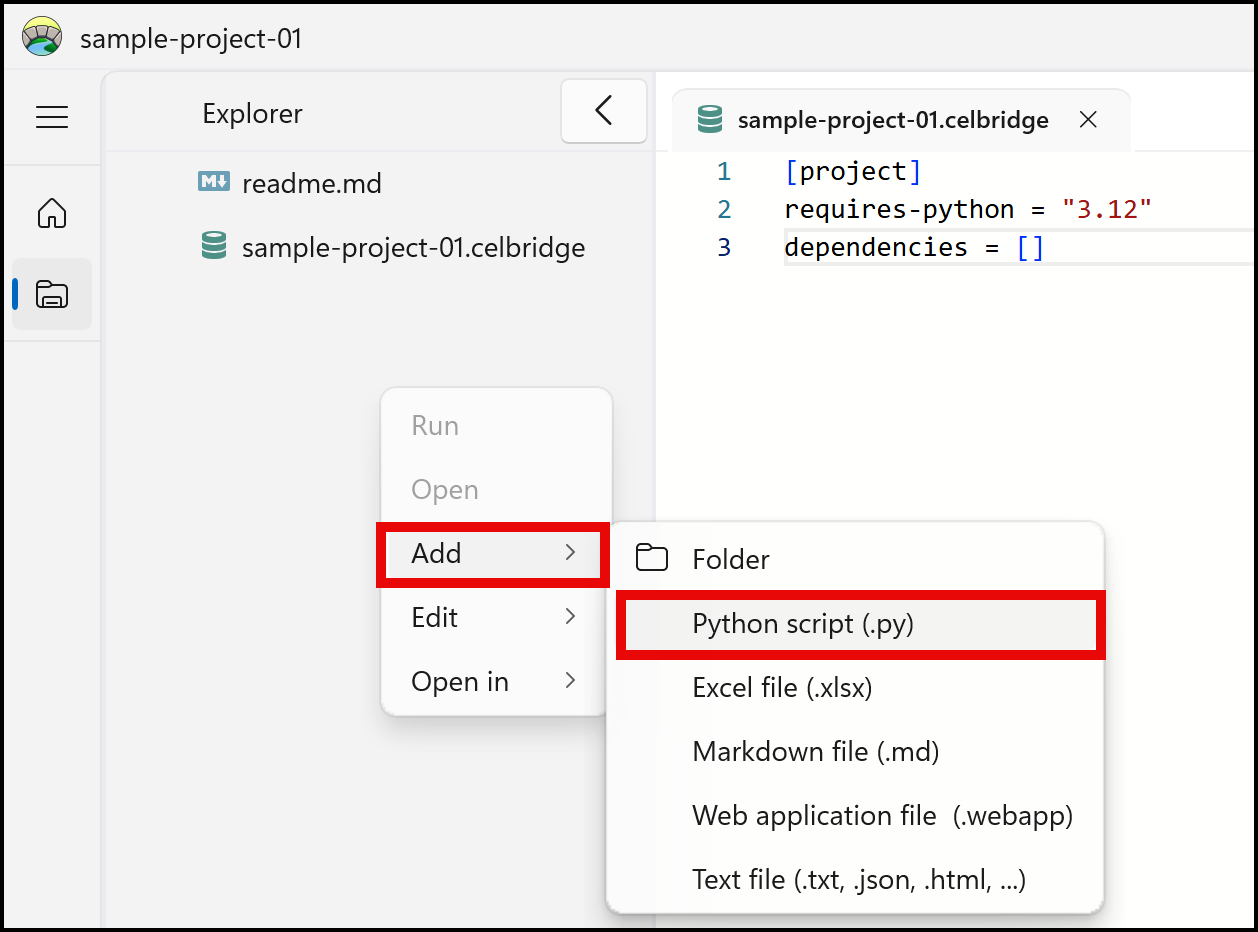
The new Python script file should be created and appear in the file explorer panel.
Edit your new script, by double clicking on file hello.py in the file explorer panel:
the file should open in the code editor in the Documents panel
Type the following simple Python print statement:
print("hello world")
Note
There is no need to click anything to save your edits - since Celbridge automatically saves your changes as you type
Run your Python script. Do this by right-mouse clicking in the file explorer over file hello.py , and choose the Run option.
In the Console panel you should see the CLI comment %run hello.py followed by the text “hello world” printed out on the next line.
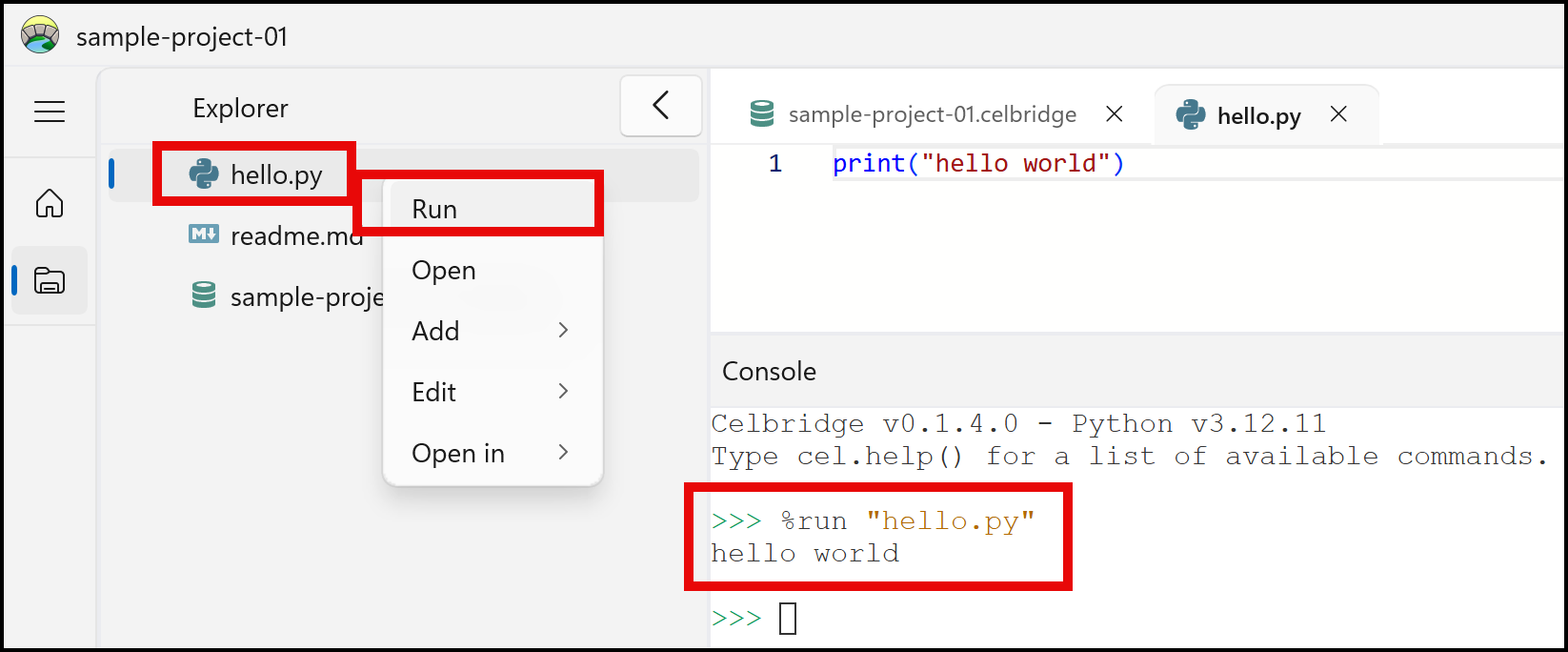
Congratulations - you’ve created and executed a Python script using Celbridge!