Web Application file
This use case example shows you how to create a web application file, set its default URL, and view it in the web viewer panel in Celbridge.
Create a new Celbridge project (or use an existing one).
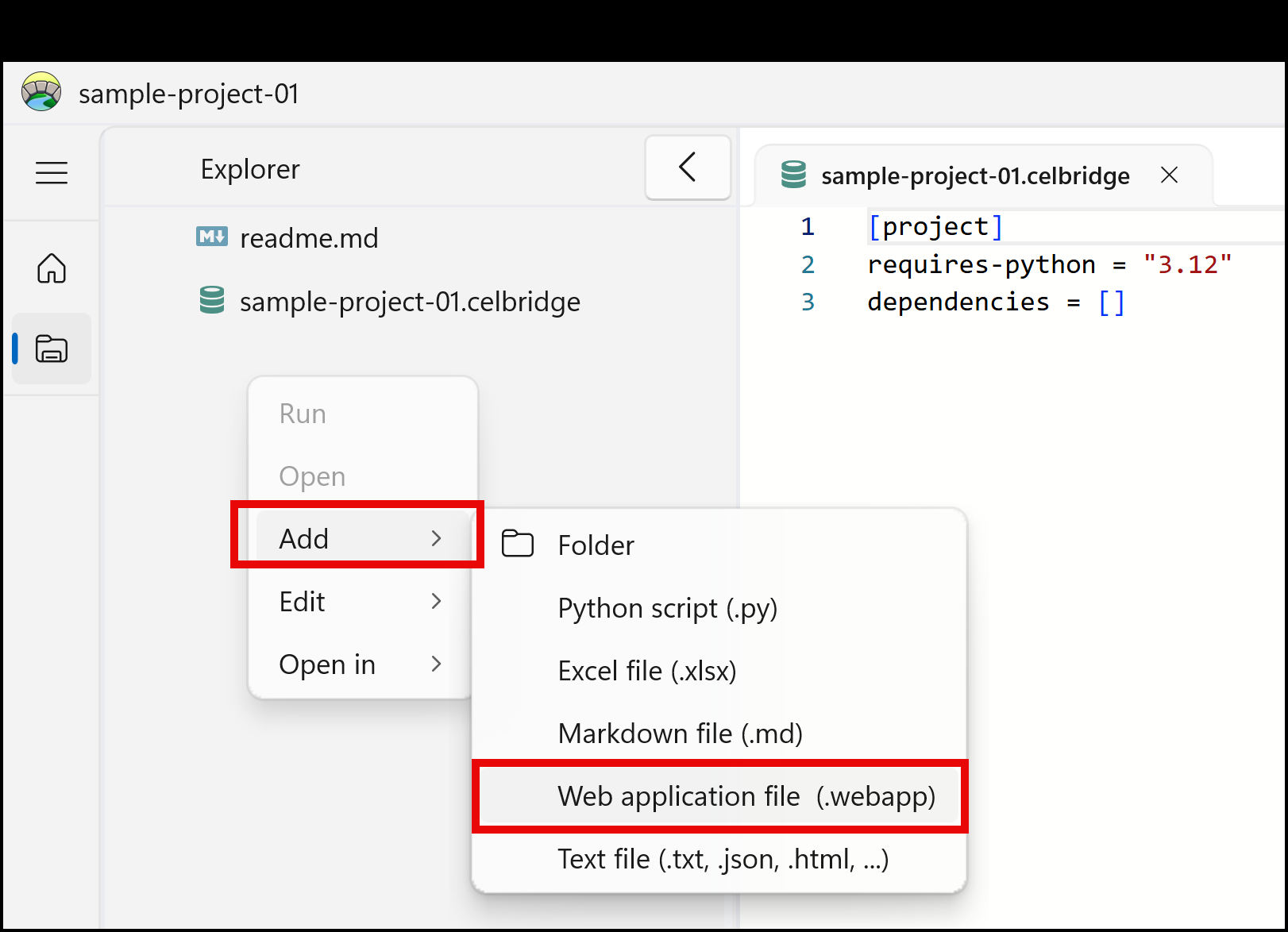
Right-mouse click in the file explorer and choose to add a new Web Application file named wikipedia.py :
choose menu: Add | Web application file (.wbeapp)
enter the file name as wikipedia.webapp
The new Web Application file should be created and appear in the file explorer panel.
Edit your new Web Application file, by double clicking on file wikipedia.webapp in the file explorer panel:
the file should open as an empty web viewer, as a new tab in the Documents panel.
In the Inspector panel, for the Start URL property, type https://www.wikipedia.org/
Once you enter your URL (such as pressing Tab or Enter), you should see the Wikipedia home page rendered in the web view
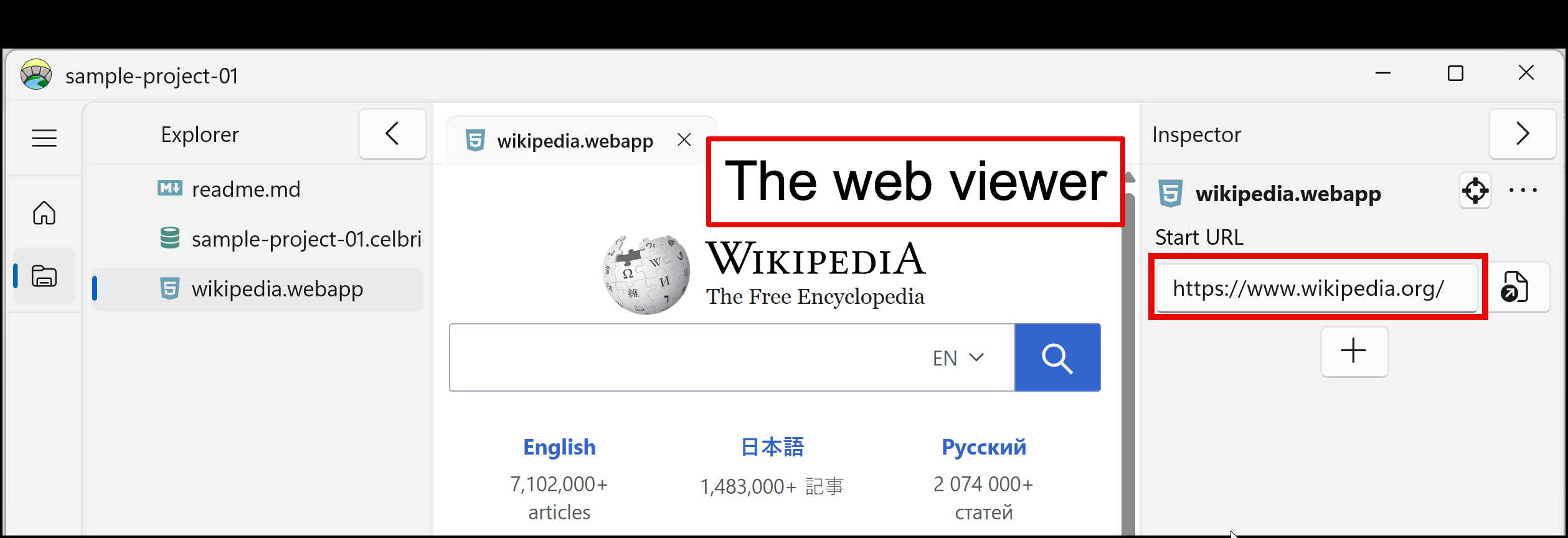
Congratulations - you’ve created and set a URL for a Web Application file using Celbridge!
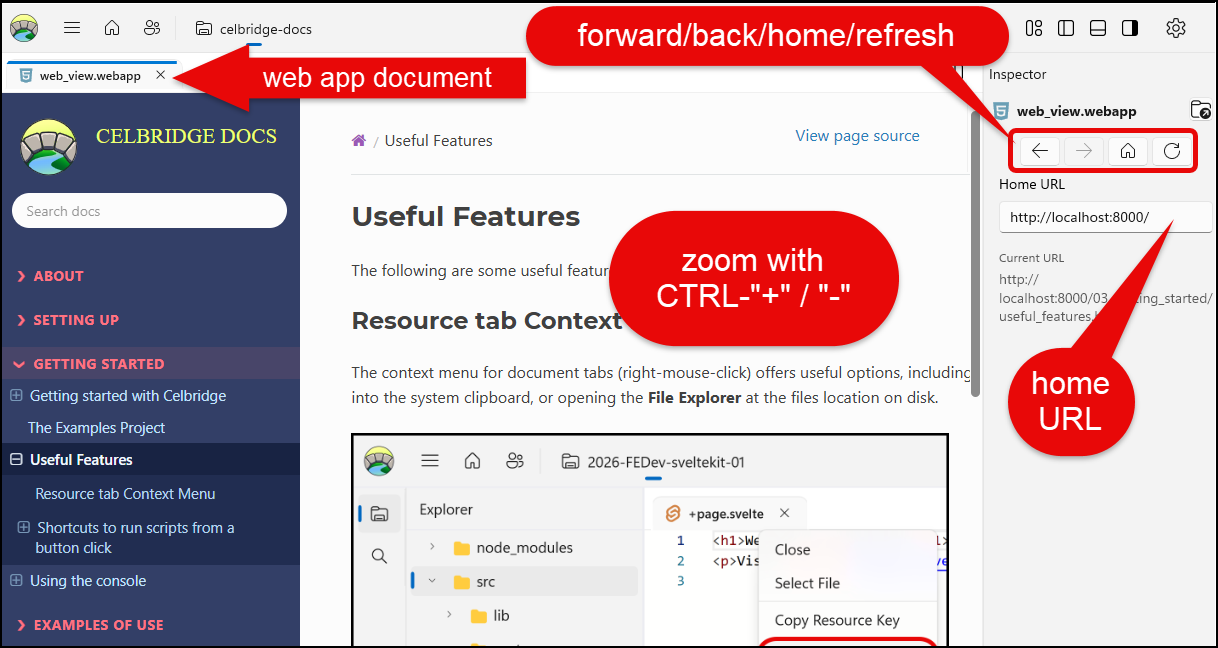
You can ZOOM using keys CTRL+ and CTRL-. In the Inspector there are arrow buttons to move forward and back in your page linking history. Also a button to reload the home URL, and a refresh button for the current page being viewed.
Chromium Console
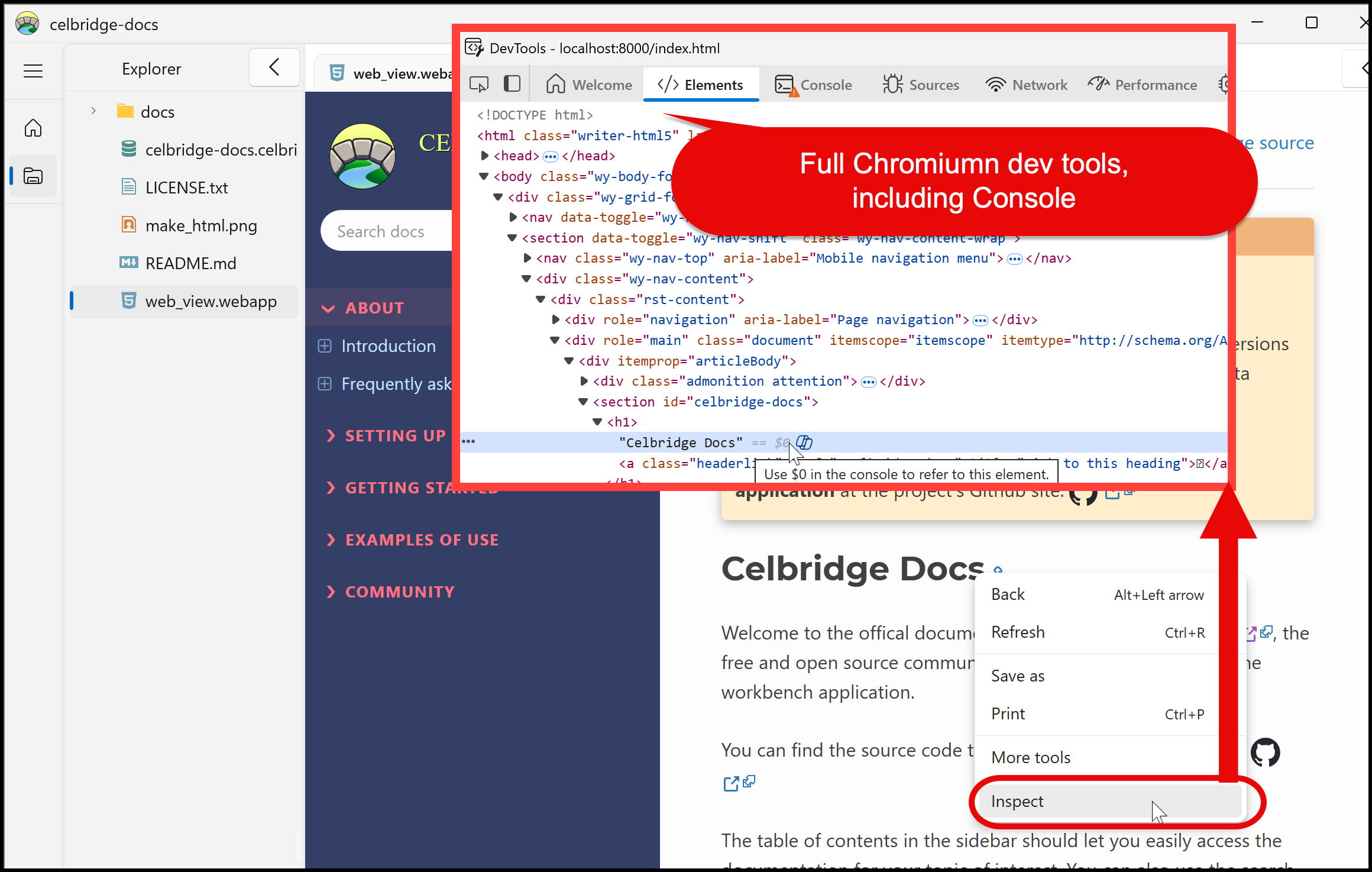
The web view in Celbridge includes the Chromium dev tools. The dev tools include panels such as:
DOM Inspector
JavaScript Console
The screenshot below illustrates the dev tools being displayed by right-mouse clicking over an web page element and selecting Inspect to open a pop-up Chromiumn dev-tools window: